Airfix DogFighter Programmer's Manual
| Home | Introduction | UPX-extractor | Game Structure | Tutorial | File Types |
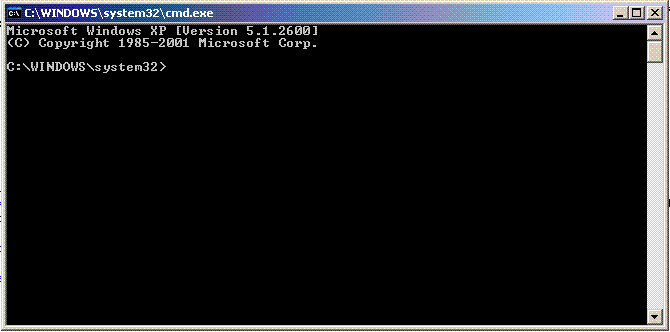
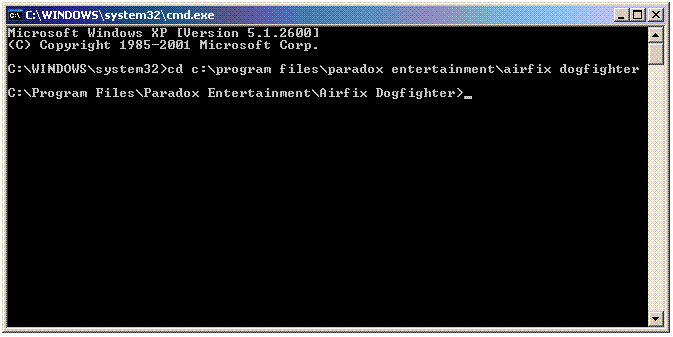
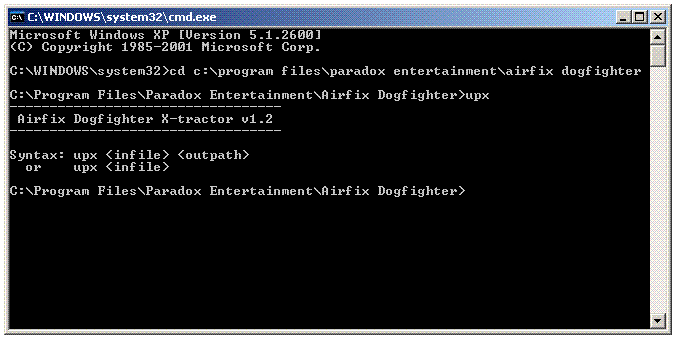
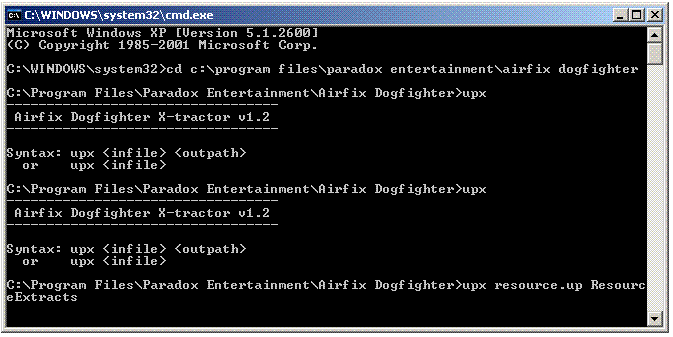
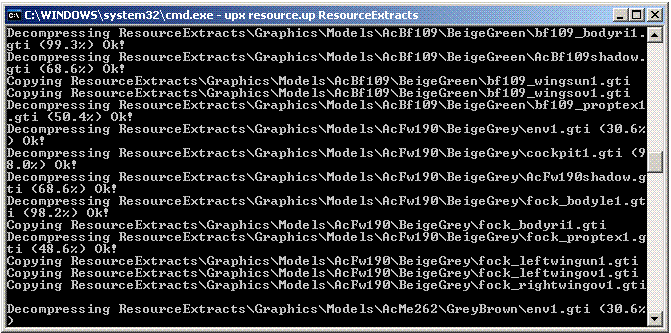
Chapter 1: Using UPXSo how do we use the UPX program? The best way is to move or copy it in the same directory (folder)
as the resource.up-file is located. |
|
Chapter 2: Overview of the extracted Foldertree from Resource.up |
 back to topxxxxx back to topxxxxx |
||
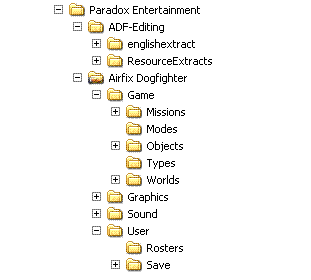
The picture on the right shows the foldertree after UPX has done its work on Resource.up:
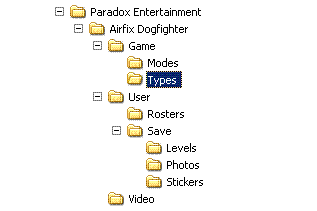
2.1: Contents of the ResourceExtract sub-folders.2.1.1: The Game-folderLet's have a closer look at the Game-folder. After the initial installation,
it didn't contain any files itself, but had two subfolders: Modes and Types.
Modes contained the two game-mode interfaces, while Types contained about 7 files
describing different classes of special objects in the game. |
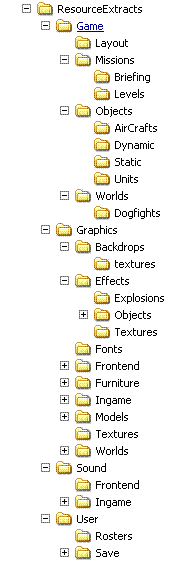 Fig 2: Resource.up Foldertree |
The Layout-folder is not very interesting: it contains data in the form of text-files about dialogboxes
that are displayed when starting, or choosing options in, the game.
The next folder however, the Missions-folder, is without doubt one of the
most crucial folders in modifying the game!
After extracting Resource.up, it does not only contain two subfolders
(Briefing and Levels), but also 41 files...
These follow the general naming convention of
SideMissionN.afs
and SideMissionN_setup.afs,
where Side is either Axis or Allies, and N denotes the Number of the Mission for that team.
Both are .afs-files, and one actually is destined to form part of the other, but that will be
explained in further detail on the Game Structure-page.
Anyone with a calculating mind will notice that 2 (teams) x 2 (.afs & Setup.afs) x10 (Missions) = 40, so what's number 41?
This last one is called "MultiPlayer.afs", a very short file, and is needed for Multiplayer mode.
The first subfolder in the Missions-folder is the Briefing-folder. In this folder you would expect all the Briefing-files (.brf) to be placed. But when you look in it, there are only two: Axis11.brf and Allied11.brf. So where are the other ones? As explained above, all files containing language-specific text are extracted from {LANGUAGE}.up. As will be explained below, an extra briefing file is needed after a player has completed a whole Campaign, hence nrs. 11. As there are no Missions 11, these files don't contain any Language-text, so they are contained in Resource.up while the other ones (nrs. 1 to 10 for each team) are contained in {LANGUAGE}.up. See chapter 5 on this page for an explanation of the Briefing-mechanism.
Let's turn to the Levels-subfolder next.
As we shall see later (see the "Game structure" Page) for every Mission (and every Dogfight-map)
there will be a .Level-file present. This is the file where the rooms, the furniture
and the inert objects in that Mission or Dogfight-map are described in.
UPX extracts these to the .Level-folder in the general format
sideN.level, where side is either Axis or Allies,
and N is the number of the Mission. The structure and function of the .Level
-files will be explained in more details in the File Types Section.
The next Folder is the Objects Folder. Everything you can place in the Airfix Villa (and outside) is considered an Object. This can be a chair, a painting, a vase, a tank, an aircraft, etc. Basically consider everything you can place on a map in the House Editor an object. Not all objects have the same properties: you can break a vase but not a chair, and neither of them can move whereas a Tank can. That's why they are ordered into 4 categories, each in a subfolder of its own: Static, Dynamic, Units and Aircrafts. The structure and function of the .Object -files will be explained in more details in the File Types Section.
The last subfolder in the Game-folder is the .Worlds-folder.
This contains 20 .world-files, one for each Mission,
and a Subfolder for the 9 Dogfight maps that come with the original game.
There is not much difference between the various files,
apart from the BCKD-block for the background-graphics all .world-files are identical...
ÿp>
2.1.2: The Graphics-folder
The Graphics-folder contains a lot of subfolders:
- Backdrops: contains graphics for the different skies outside.
- Effects: Graphics for various effects like explosions, projectiles etc.
- Fonts: Graphics for the fonts used in the Game.
- Frontend: Holds the graphics for the various Dialog Screens in the Game.
- Furniture: Holds 110 subfolders, each describing a Static object that can be placed in the House.
- Ingame: One subfolder:HUD. This contains all the graphics for the Heads Up Display in the Game.
- Models: Holds 132 subfolders, each one describing a Dynamic Object in the game. This includes Tanks, Aircraft, Breakables, Burnables etc.
- Textures: Holds 447 pictures(.gti-files) for all visible objects in the Villa.
- Worlds: Holds the actual Graphics-files (.ccf-files) for the rooms and Gardens in the Villa.
A few footnotes about this:
In all these folders you will find either .gti (picture) or .ccf
(configuration)-files. The Fonts subfolder also contains a few .fnt (font)-files.
The folders Furniture, Models and Textures contain so many subfolders that it wasn't very
practical to unfold them here. By all means have a look at them yourself (if you have used the UPX-utility)
and you will find that in the Furniture-folder you will only find a .ccf-file
in each subfolder, for the Models each subfolder will also contain the Texture-files for
that Model (in further subfolders).
If we had extracted Resource.up not into a folder called ResourceExtracts, but into the Airfix Dogfighter folder, then the
two Foldertrees would have merged into one.
We will do that a bit later, but before we do, let's extract the other .up-file, the {Language}.up one.
Here, we will use English.up, but it should work the same for whatever language you use...
To do this, use the UPX program, following the instructions as given above, but with
English.up instead of Resource.up. Define the Outpath as EnglishExtract.
Chapter 3: Overview of the extracted Foldertree from English.up |
back to topxxxxx |
The picture on the right shows the foldertree after UPX has done its work on English.up. Once again
we see that the folders extracted are slightly different from those created after the original installation. If we compare the
Foldertree resulting from the UPX-extraction of English.up to
that of the one from Resource.up, we see that there are overlaps: Again we have a
Game-folder, with a Briefing Subfolder, but this time with a
Medal subfolder instead of the Level-subfolder. The Briefing-subfolder contains the 20 Briefing-files for all 20 original Missions,
but there is an extra one: AllAircrafts.brf.
The Briefing-files are a bit of an oddity: when you select a Mission to play, you get the Briefing-information for that Mission, but the Aircraft available to you depend on how many Missions you have completed.... |
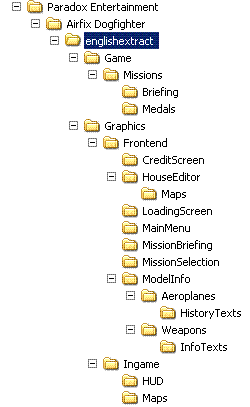 Fig 3: English.up Foldertree |
Chapter 4: the Briefing-Mechanism.
back to topxxxxxEvery Mission starts with a preamble describing the background and the objectives of that Mission,
and these are described in the Briefing-file.
However, if we have a look in this folder after extracting resource.up, we find only 2 .brf-files:
Allied11.brf and Axis11.brf.
Even though there are only 10 Missions for each team... Why?
The reason is rather simple: Every Briefingfile for Missions 1-10 (both sides) contains text,
and therefore can't be extracted from Resource.up which is Language-independent as we saw a bit earlier.
For a full description of the Briefing-file see the Filetypes-page,
but suffice for now to say that, apart from the briefingtext, the .brf-file also contains a list of
aircraft available for the Mission in Question.
The way the Briefing-mechanism works is as follows: When a new Pilot is enlisted, a new Rosterfile is
created for that Pilot in the Rosters-folder. For a full description of this file see the
Filetypes-page, but suffice to say here that this file keeps a record of how many Missions (for
each side) the Pilot in Question has completed(!).
If it is a new Pilot, he will not have completed any,
and can only fly Mission 1. Therefore, Briefingfile Side1.brf will be presented, and the list of aircraft
available to that Pilot for that Mission will be taken from Briefingfile 1, in the case of
AlliedMission1 that means only the Hawker Hurricane will be available to that pilot.
Once the Pilot has completed AlliedMission1, he is ready for AlliedMission2 and on selecting that Mission
he will be presented with Allied2.brf. In AlliedMission1 he has gained the
Hawker Typhoon, so AlliedMission2 can be flown with either the
Hurricane or the Typhoon.
But, and herein lies the crux of the mechanism!!, if at this stage the Pilot decides to fly
AlliedMission1 again, he can do so with either the Hawker Hurricane OR the
Hawker Typhoon, as he has gained the latter aircraft on completing
AlliedMission1.
The conclusion is clear: when a pilot flies a Mission, the Text of the Briefingfile for that Mission will be displayed, but
the list of Aircraft Available (the AIRS-block) will be taken from the
Briefingfile for the Mission that this pilot yet has to complete.
In other words, if you have completed AxisMission8 and want to fly
AxisMission3 again , you will be presented with the text from Axis3.brf,
But with the AIRS-list from Axis9.brf.
For some reason, probably only known to the original programmers, you are rewarded an extra aircraft after you have
finished a Campaign: the Hellcat for the Allies, the Komet for the Axis Team.
As these are not available in Side10.brf, they have to be included in Side11.brf, even though there is no
11th Mission in either campaign. Side11.brf therefore has no text and can
therefore be extracted from Resource.up.....
This mechanism has one unwanted side-effect: The whole Briefing-scheme is developed for a Campaign , in other words,
10 related Missions that follow each other. If you create a new, single Mission for that Campaign you can add any aircraft in the
AIRS-list, the list of Available Aircraft but if you do that only for the briefing-file
for that Mission, those aircraft might not be available if you have already flown a higher-ranked Mission....
Chapter 5: To UPX or not to UPX?.
back to topxxxxx|
So, do you need/want to do the extractions, and if so, where to?
The most straightforward answers would appear to be yes, and in the
"Airfix Dogfighter" root-directory.
|
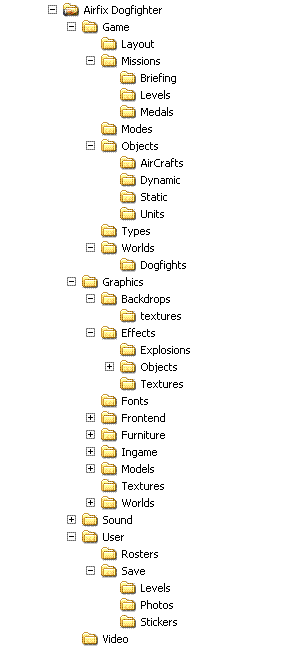 Fig 4: Complete ADF Foldertree |